.png)
SoR Agreements - how to create and access
Selling a vehicle on a Sale or Return basis: as an agent for the owner, in exchange for an agreed listing fee and sale price comes with its own paperwork and process. This step-by-step guide, with screenshots throughout, walks you through creating an SoR agreement in the MYDEALERSHIPVIEW DMS platform, so the terms, fee structure, vehicle condition and consumer's agreed sale price are recorded correctly from the outset.
How to add Sale or Return (SoR) vehicle's to stock
By default. this option is turned off for clients until it is requested to be enabled. Although there is no fee for the feature, due to the impact it can have on your stock reports (as SoR vehicles are handled differently to provide accurate reporting), it is crucial you understand the functionality before giving it a try.
| Step 1. From the MyStock page, click on or select the vehicle | 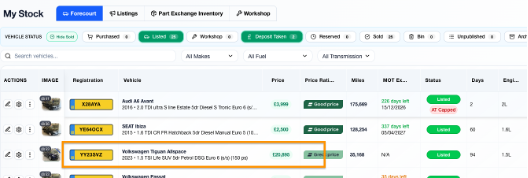 |
| Step 2. Select Purchase information where you will see Standard and SoR along the top menu | 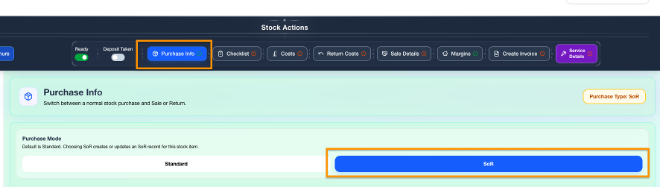 |
| Step 3. Fill out the details beginning with customer type (you are able to select ‘Business’, as well as ‘Customer’, with Customer being the default value) | 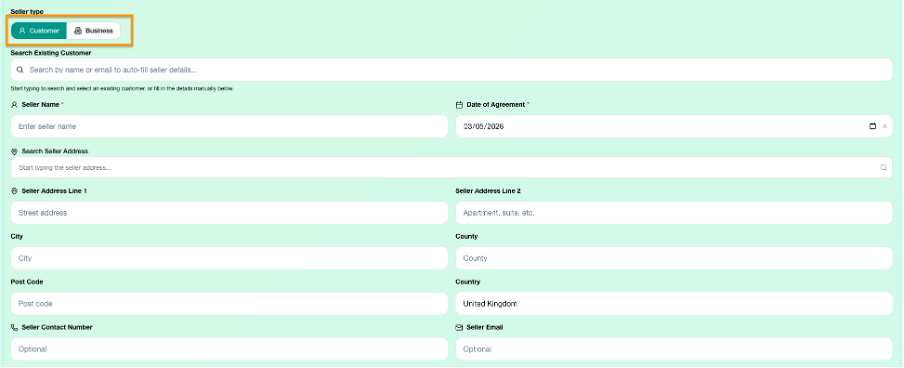 |
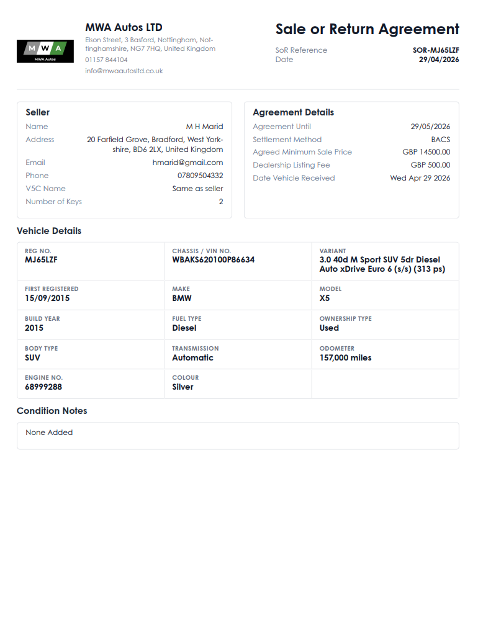
| Step 4. The following parts of information will be key to your reporting; Minimum Sale Price (Due to be paid to seller from Sale Price) this is the amount you have negotiated and agreed with the seller, which they will receive from sale proceeds Dealership Listing Fee (To cover listings, valet, and any prep) An optional input to cover if there is a flat fee agreement i.e. £500 to cover the listing and sale whether the vehicle sells or not Agreement Until (The Listing Fee and Agreement expiry date) If required, you are able to input the date the agreement will expire between both parties Condition Input Found on the bottom right, this is where you are able to document any issues e.g. wheel locking nut not with the vehicle, to cover yourself | 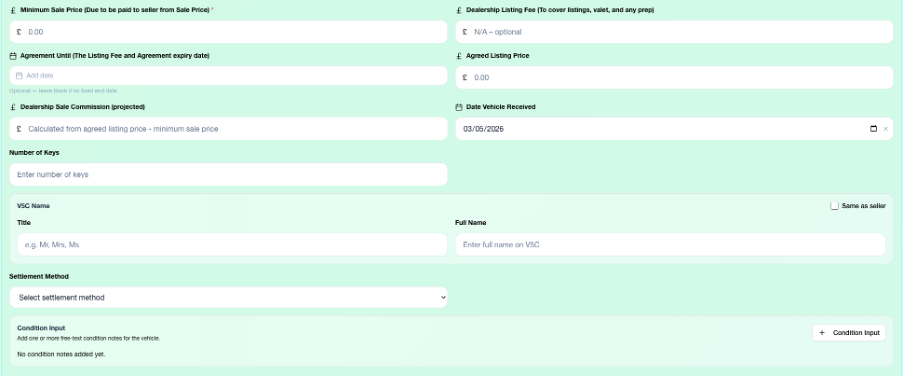 |
Once these details have been entered and saved, your Agreement will have automatically generated
Locating and updating the agreement
Option 1: Via the Services > Other Invoices menu
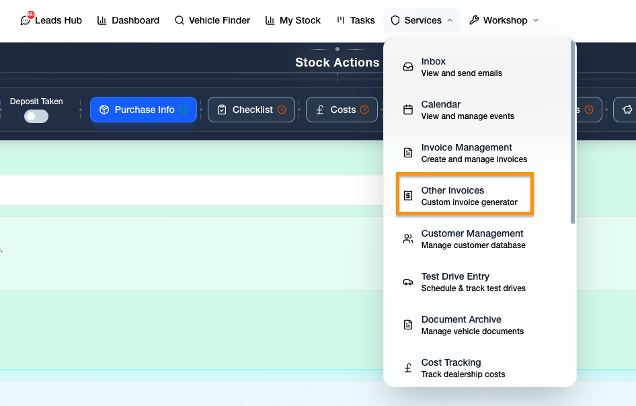 | 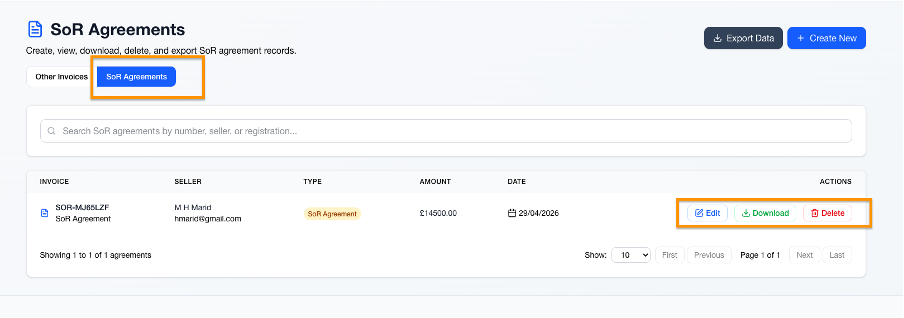 |
Option 2: Via the footer menu > SoR Agreements
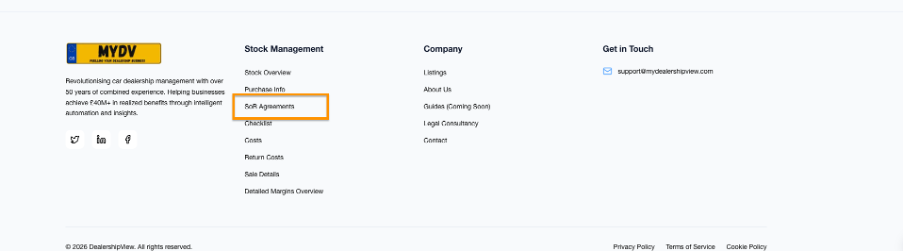 | 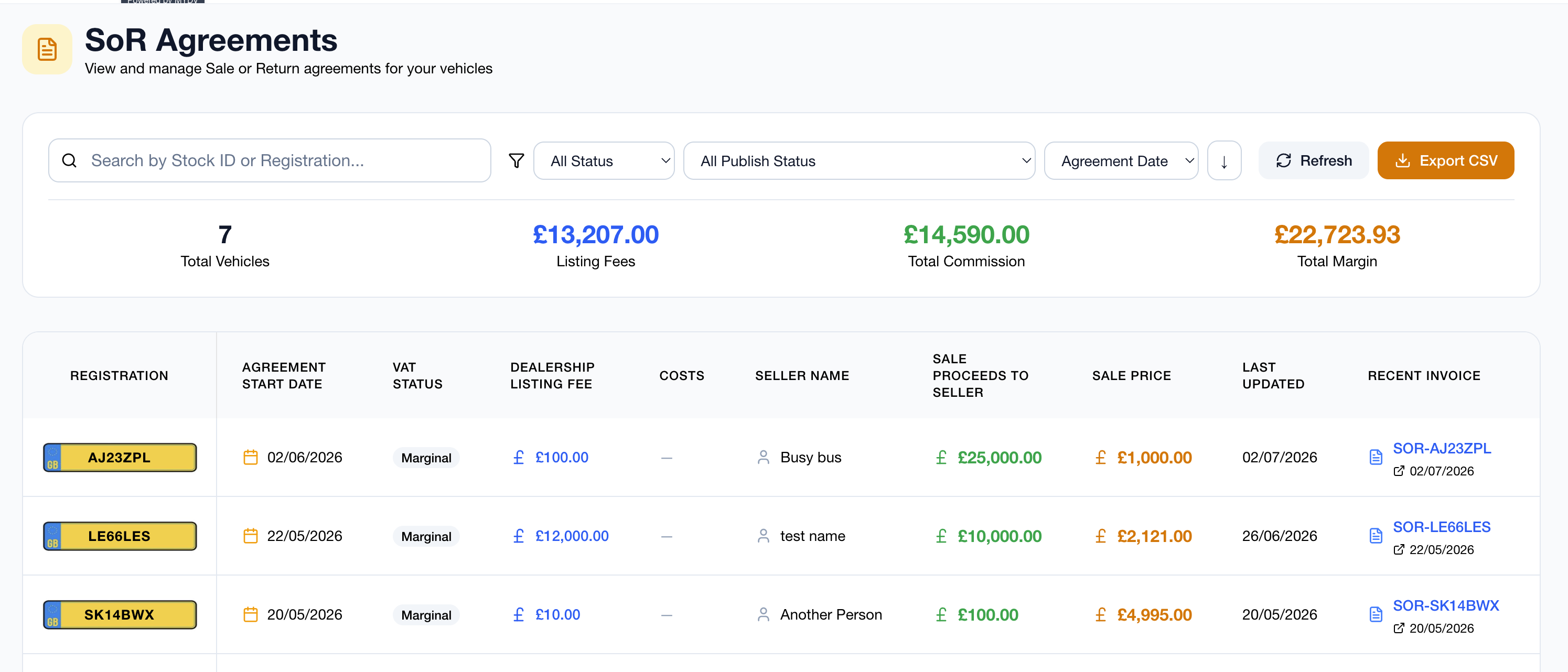 |
The footer menu is important to get familiarised with, as that is where the agreement status, overviews and any sold car sales invoices will be easily accessible from.
To generate a report of the data including margins breakdown for accounting, from the footer menu page you simply press ‘Export CSV’
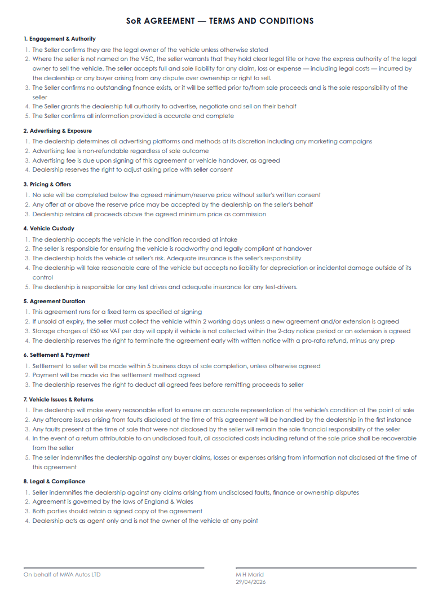
Please see the sample export/SoR Agreement Document
A disclaimer will be added into the sales invoices automatically if SoR is selected
 |  |
Please get in touch via email to have this feature activated for you.