.png)
Managing Inventory Stock and Views
Not all stock will be listed, and some stock will be part exchanges taken in which are not ready to list. You may also have stock that is in the workshop or unavailable for other reasons. Read this guide to understand the different ways to understand and manage your stock
Understanding how your stock is organised
There are numerous ways to view and manage your stock. This guide is to help you understand the layout and accessibility of inventory data to super-charge your navigation and efficiency.
From the MyStock page you have tabs for Forecourt, Listings, Part Exchange Inventory and Workshop available as default.
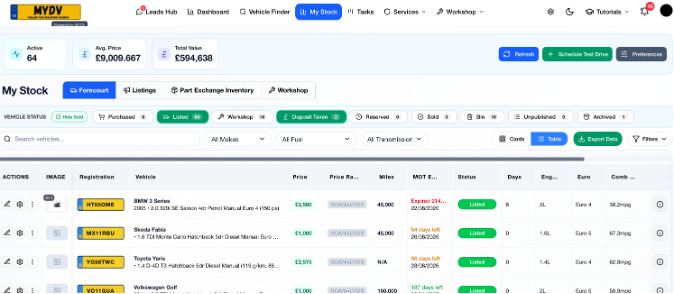 | Forecourt - This tab is the default and shows an overview of each vehicle in your stock. It includes filters to show vehicles with the following statuses: Purchased - Vehicles you have added without a listing price or that are not ready to list for sale Listed - These are the vehicles advertised on one or more of the available advertising channels Workshop - Vehicles that you have categorised as being in the workshop (usually where a car is needing some sort of mechanical or repair work). These can be either listed or unlisted Deposit Taken - Where a reservation has been taken by your dealership or via a Deal Builder deal request that you have approved Reserved - Vehicles reserved without a deposit or deal in place Sold - Sold vehicles Bin - Vehicles that have been deleted or 'binned' Unpublished - Vehicles that are not listed on any channels but may also have a listing price and all other advert data Archived - vehicles you have sold that appear in this category before being removed |
Quick References from the Forecourt view
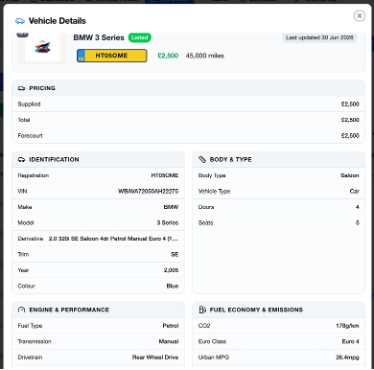 | By selecting the information (i) icon on the far right, you can quickly load and view the hidden spec data for the vehicle as well as any notes and or references you have added via the job cards, stock management or workshop cards | 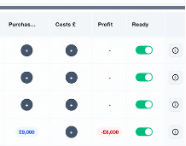 | The 'Ready' toggle is for your reference only and not shared anywhere. If you know a car needs a quick check or clean, you can toggle this to 'off' as a reminder and/or reference |
| Part Exchange Inventory - More often than not, part exchange vehicles will need some sort of prep before being added to your forecourt or may be sold without advertising. Any vehicles you add using the part exchange module (accessible via Leads Hub and leads, Sales Details and/or whilst creating an invoice) | 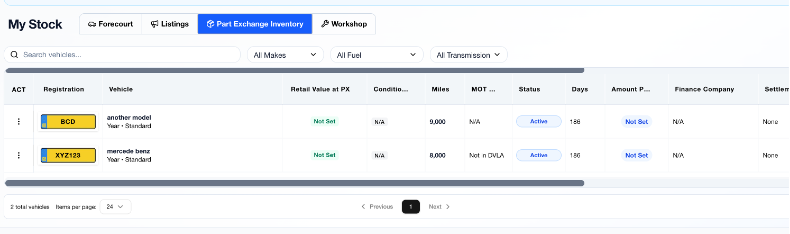 |
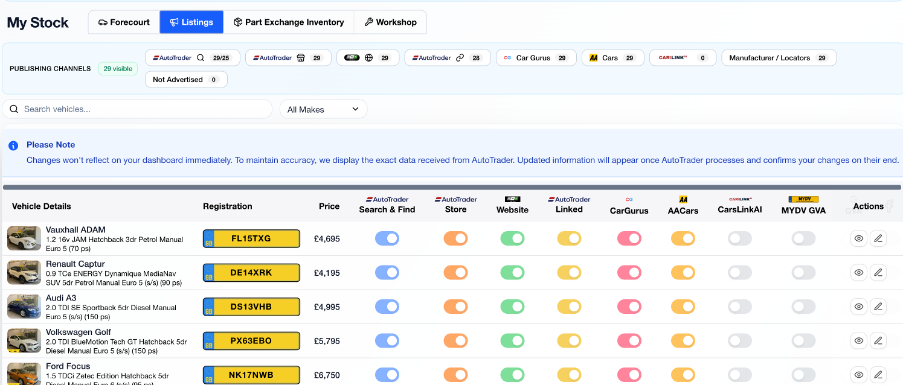 | Listings - A one page to view and manage manage the channels each vehicle is listed. Using the pencil icon on the far right of every row to change the vehicle into into 'editing mode' you can update the listing price, update the listings channels as well as edit the images selected for channels that have certain image restrictions (motors). You can also use the filters above the inventory rows to filter by channel. |
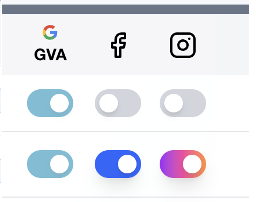 If you have added your social media accounts (Facebook, Insta, Ticktok or X), these will also appear in the listings options
Alternatively, if you prefer the traditional T Card board view, you can update the My Stock page to set the Stock Management Board as your default view
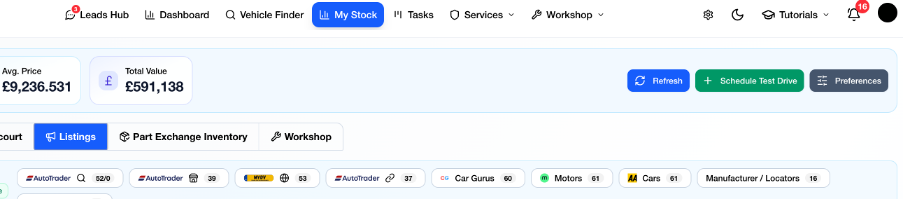 | On the far right, select "Preferences" |
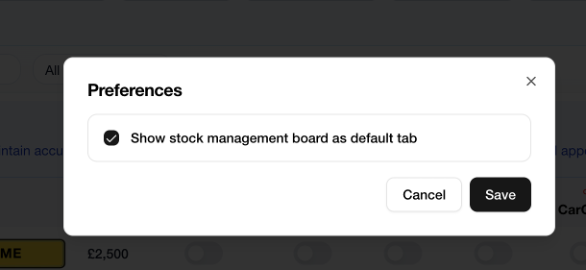 | On the pop up, check the tickbox to "Show stock management board as default view" and click save. |