.png)
MYDEALERSHIPVIEW
Adding Vehicles to Stock
How to add vehicles to your MYDEALERSHIPVIEW Stock Inventory
Add vehicles to you Inventory / Forecourt
There are two main starting points to add vehicles to your inventory
| From the top navigation menu and Vehicle Finder | 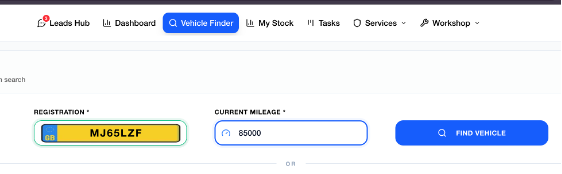 | Using the Quick Actions pop up menu | 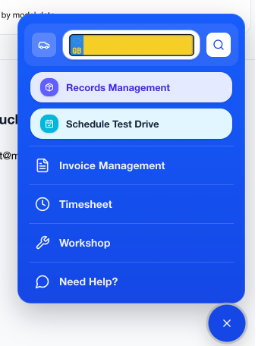 |
Once a valid registration has been entered, you will see the following screen
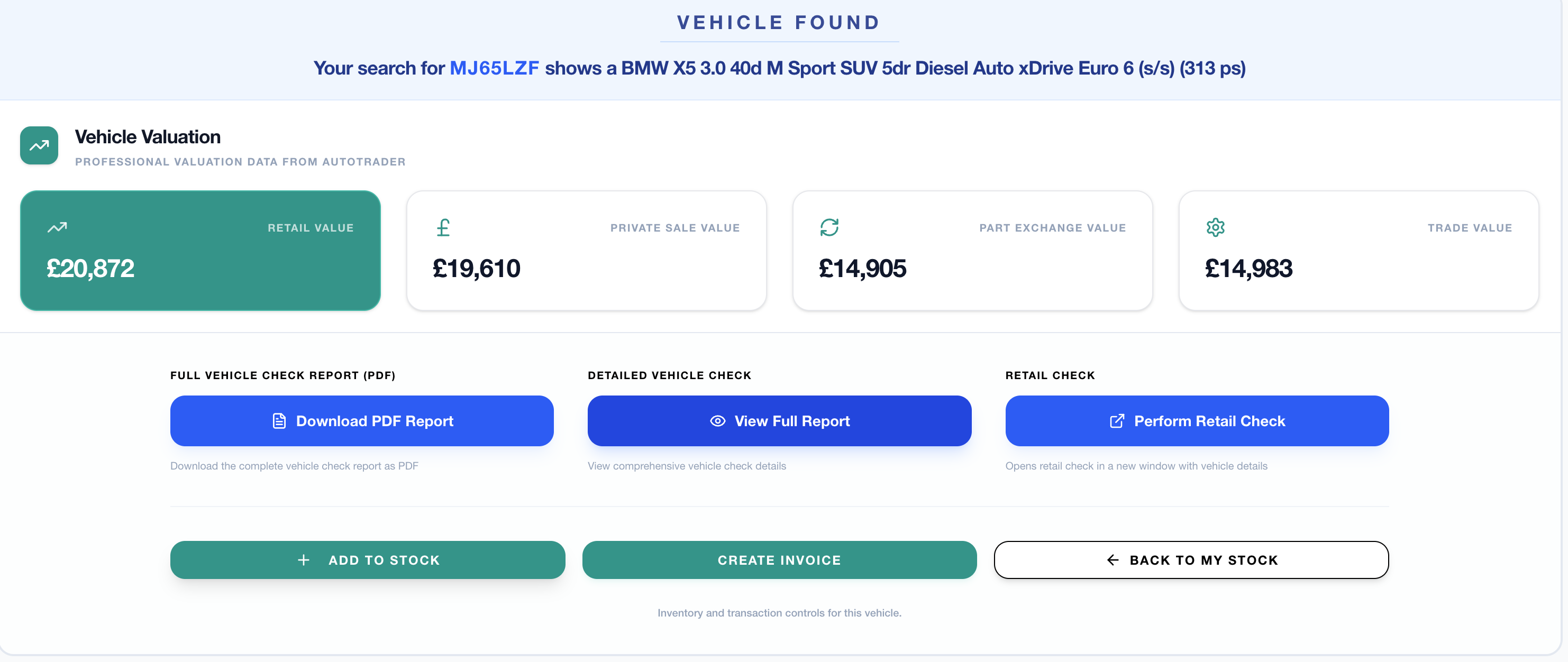
A breakdown of the data and adding to stock process
| Review the Retail, Private, Part Exchange and Trade valuations |  |
| Perform Vehicle Checks, see the Full Vehicle Report provided by AutoTrader or Perform a Retail Check (applicable AutoTrader package required) |  |
| From here, you can Add to Stock, Create Invoice without adding the vehicle to your inventory or scroll down to view the vehicles data and specification results |  |
By scrolling down the page, you can view the sectioned data, collapsed by default with any flags highlighted on this view
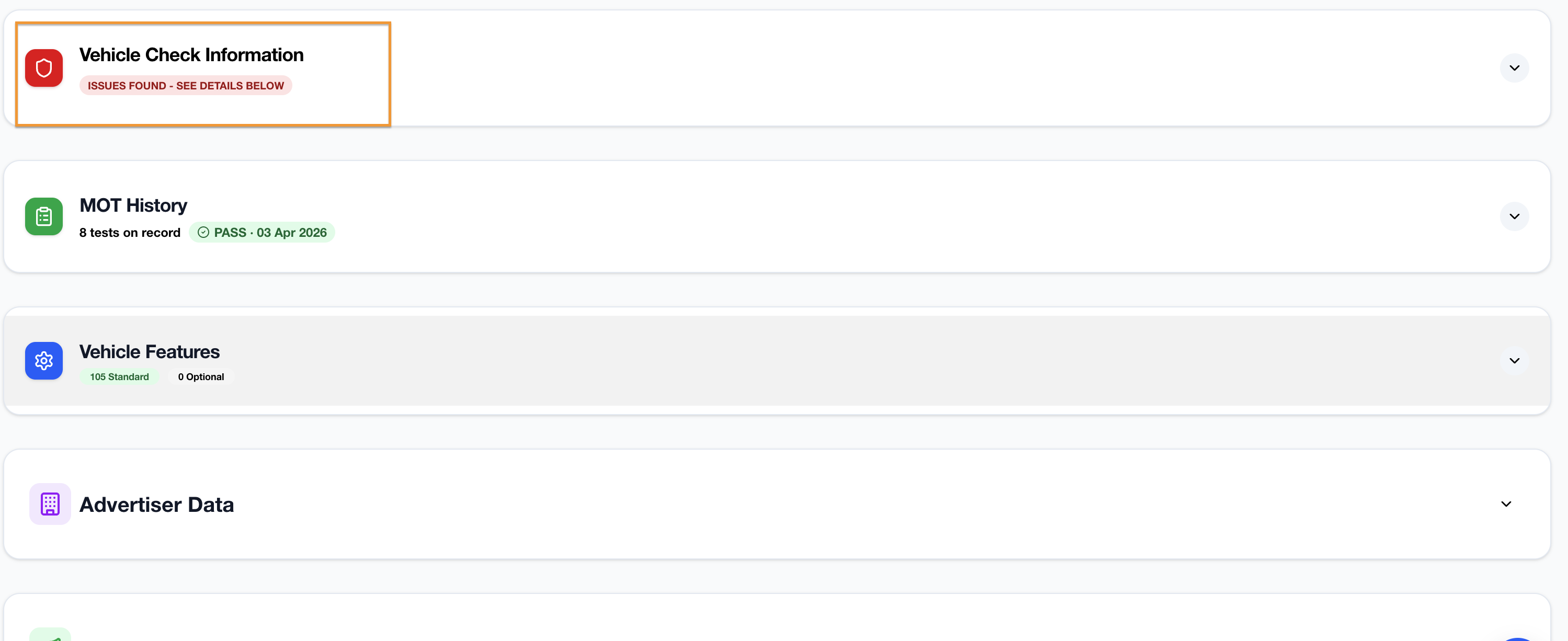
Clicking on a section will expand the container to reveal the detailed records
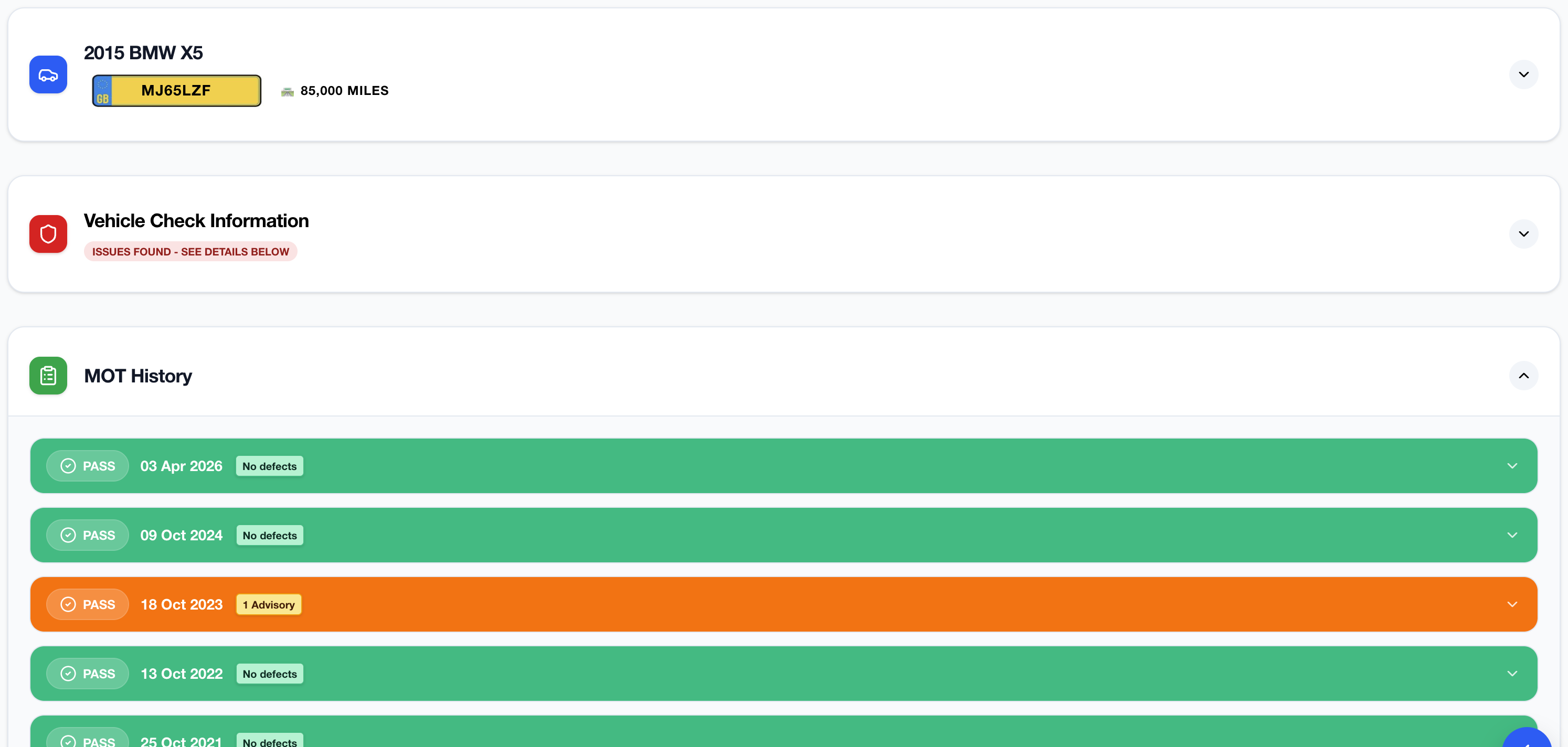
| When ready to add vehicles to stock, you will find this screen at the bottom of the page or from the "Add to Stock" button at the top | 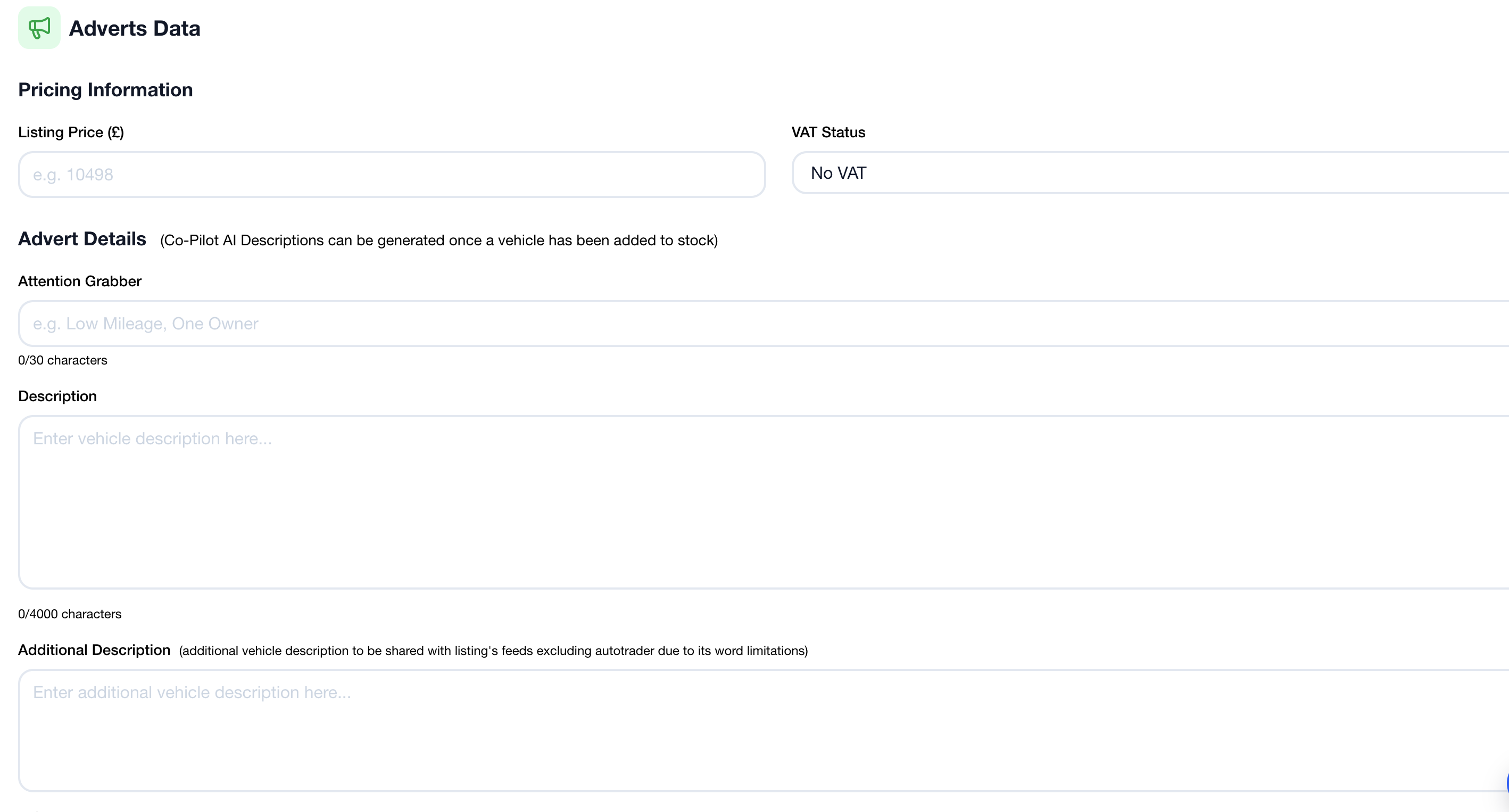 |
| From here, you can add the listing price, add the VAT Status for any vehicle you are listing including cars, as well as adding a standard description. If you require a longer description for channels that allow additional text / characters or wish to load a saved template, these options are just below this screen | 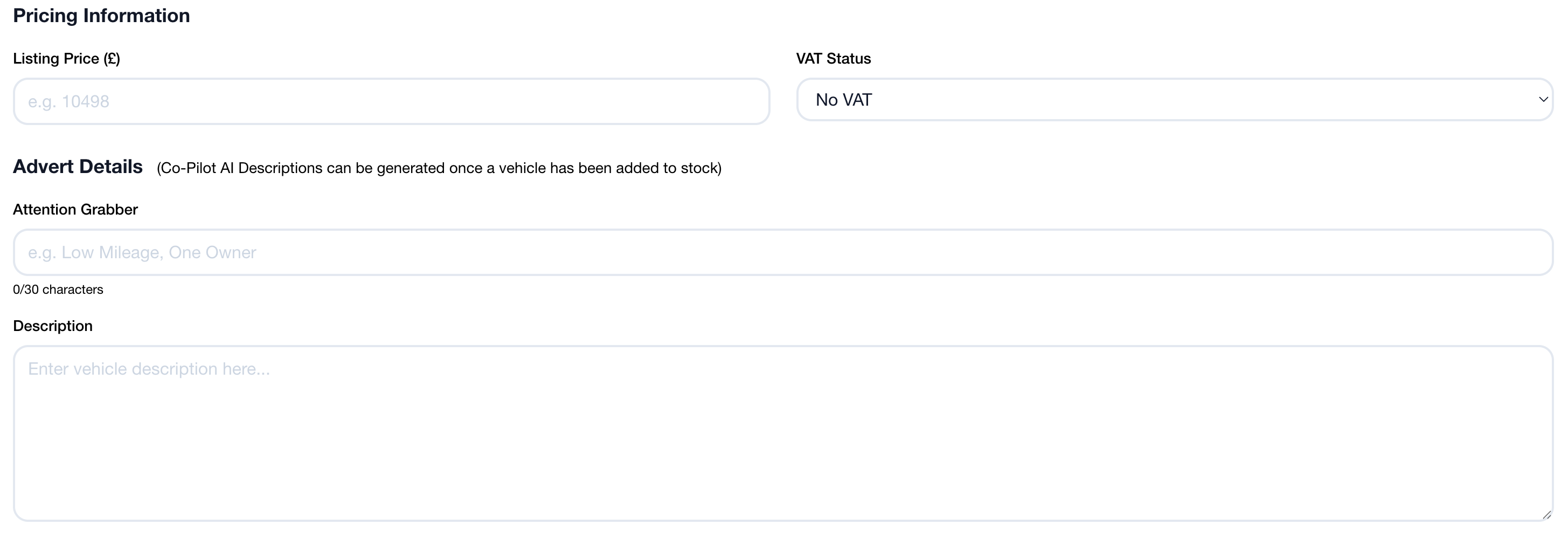 |
| From this screen, you can add a longer description (or any parts that do not fit into the primary / standard description box, or, select and insert a details template | 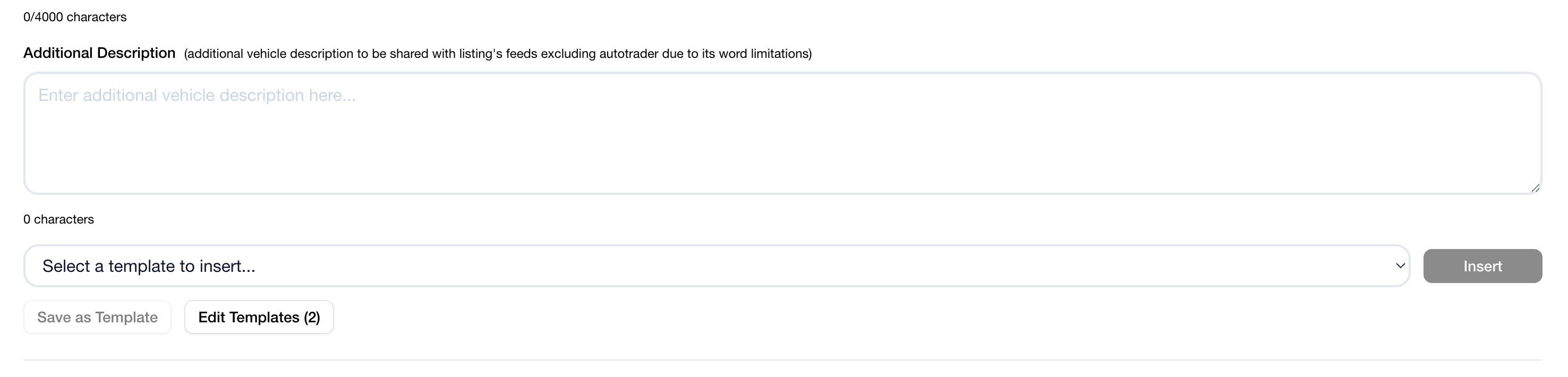 |
| On the final section of this page, you can upload images for your device and/or cloud storage, add video URLs and click "Add to Stock" | 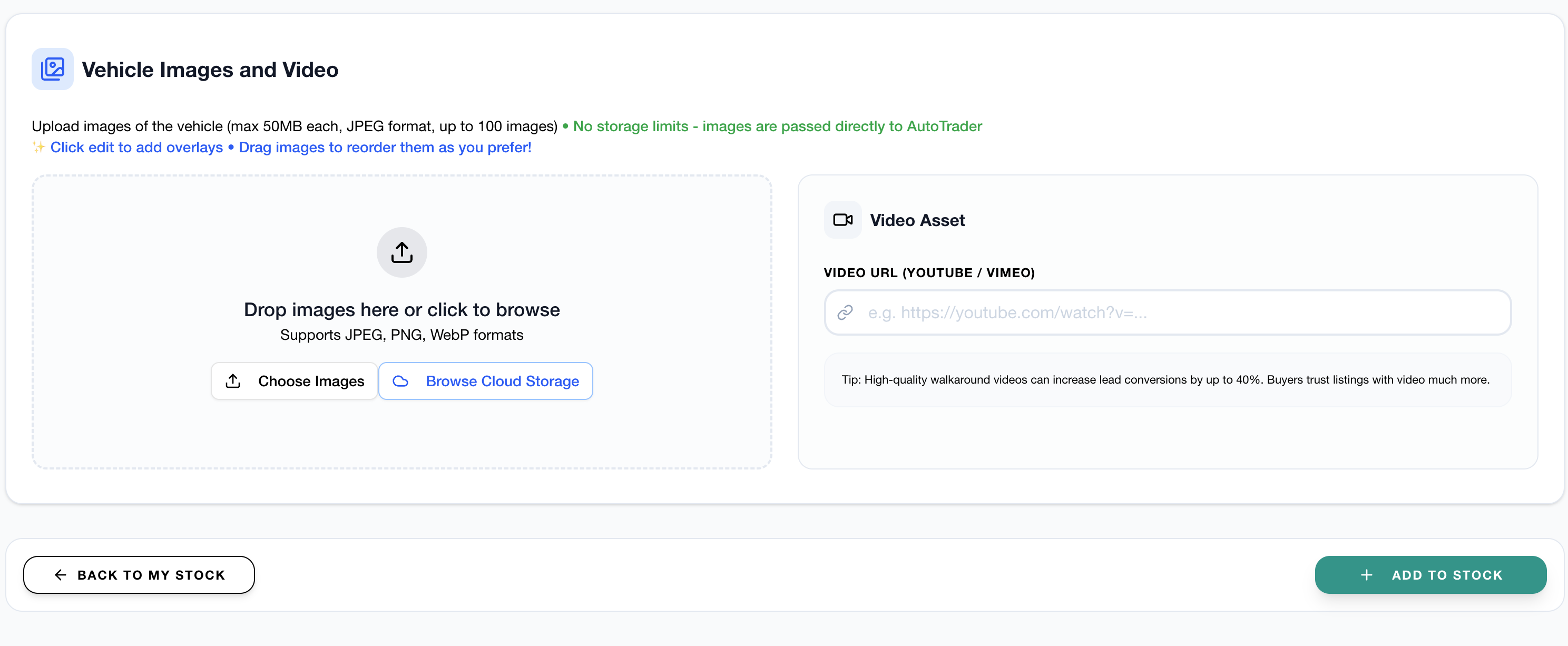 |
You will then be presented with a list of available advertising channels (all selected by default)
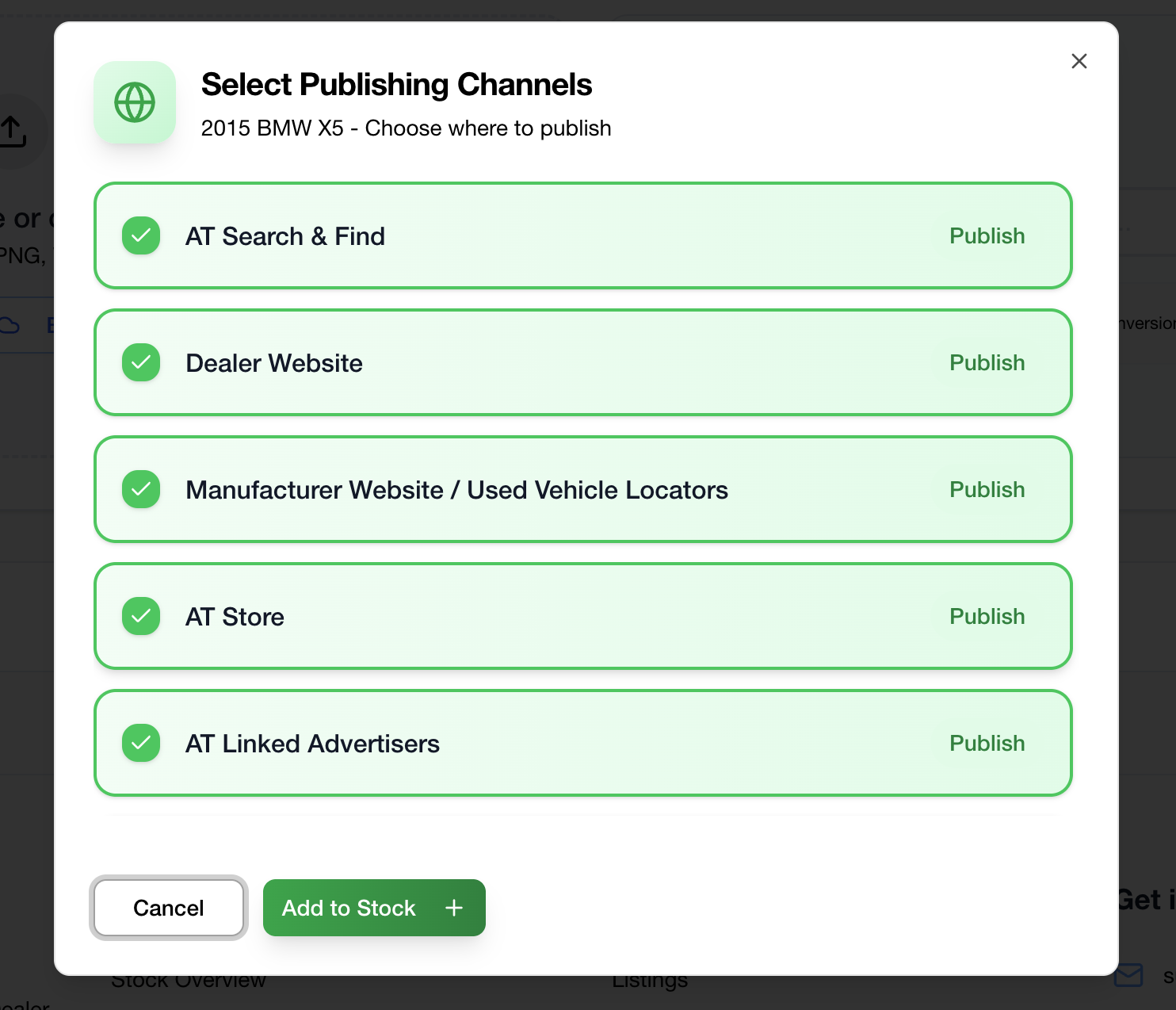
| Once you have confirmed the listings channels, you will be presented with this screen. From here, you can add the vehicles Purchase Information, add any documents you wish to upload or add another vehicle | 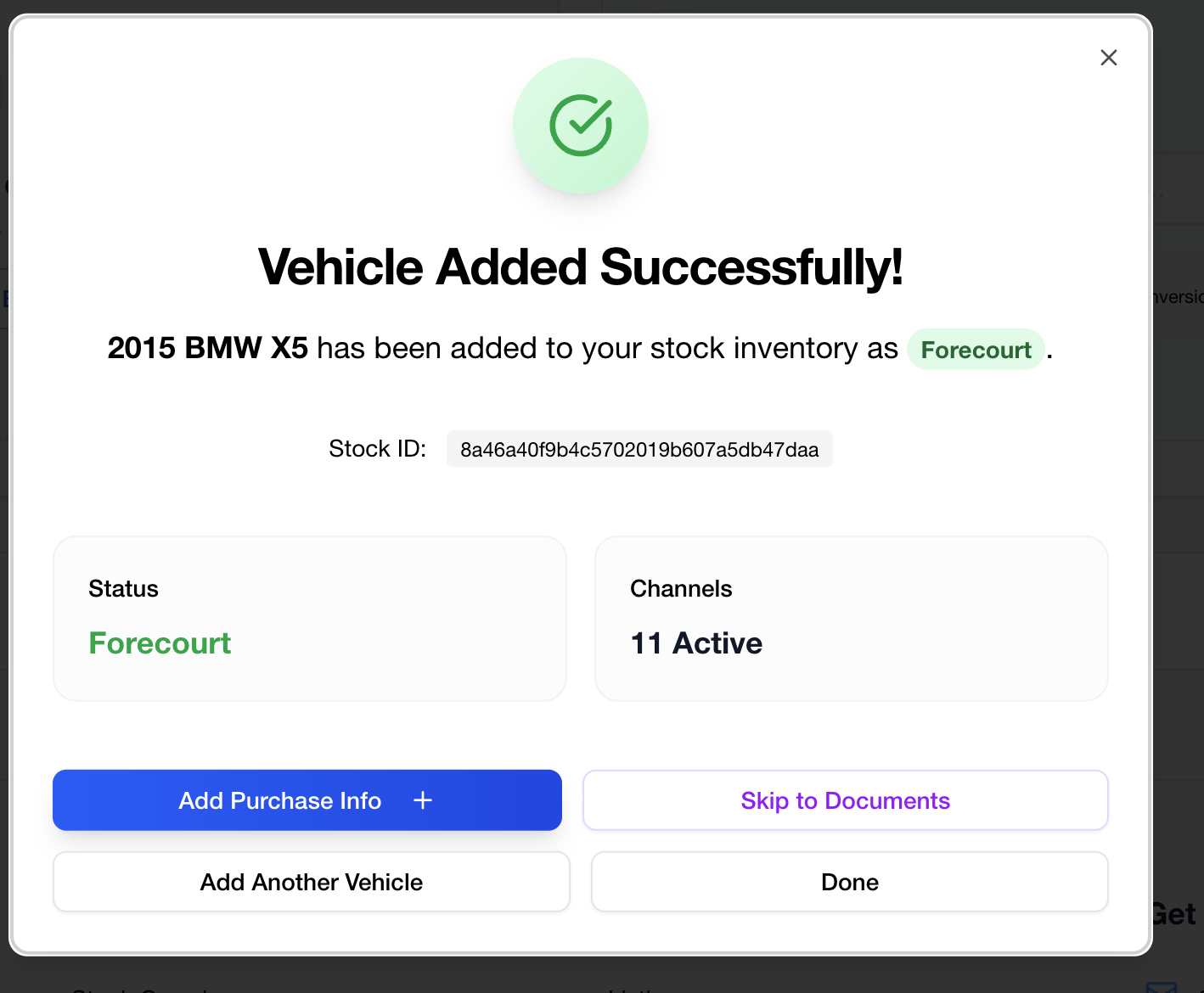 |